
Some states have dedicated funding to assist homeschool families. These funds are distributed to student accounts, from which families can purchase school curriculum and related services. States will typically contract with a 3rd party service provider like ClassWallet to administer the accounts and reimburse vendors for purchased goods and services. CompuScholar is a registered ClassWallet vendor, currently approved in the following states:
If your state is not on this list, but you know ClassWallet is administering a similar program for your student, please Contact Us, and we'll be happy to apply as a vendor.
Purchasing with ClassWallet
CompuScholar is a Direct Pay vendor with ClassWallet, which means you must get an "invoice" (or similar documentation) from us and submit that invoice to ClassWallet.
To make a CompuScholar purchase using ClassWallet, please follow these steps:
- Visit the CompuScholar course description page for the title you want to purchase. Select "Courses" and then the desired course from the top menu at https://www.compuscholar.com/homeschool.
- Click the "Purchase Now" button near the top-left corner and select the 1-year option. We do not support monthly subscriptions through ClassWallet.
- Enter your zip code in the pop-out shopping cart and click "Proceed to Checkout".
- On the checkout page, enter your email address, name, student's name, and address as shown below. Do not enter payment information. Instead, you will take a screenshot (see below) to use as your invoice. This page has all required information to serve as your ClassWallet invoice.
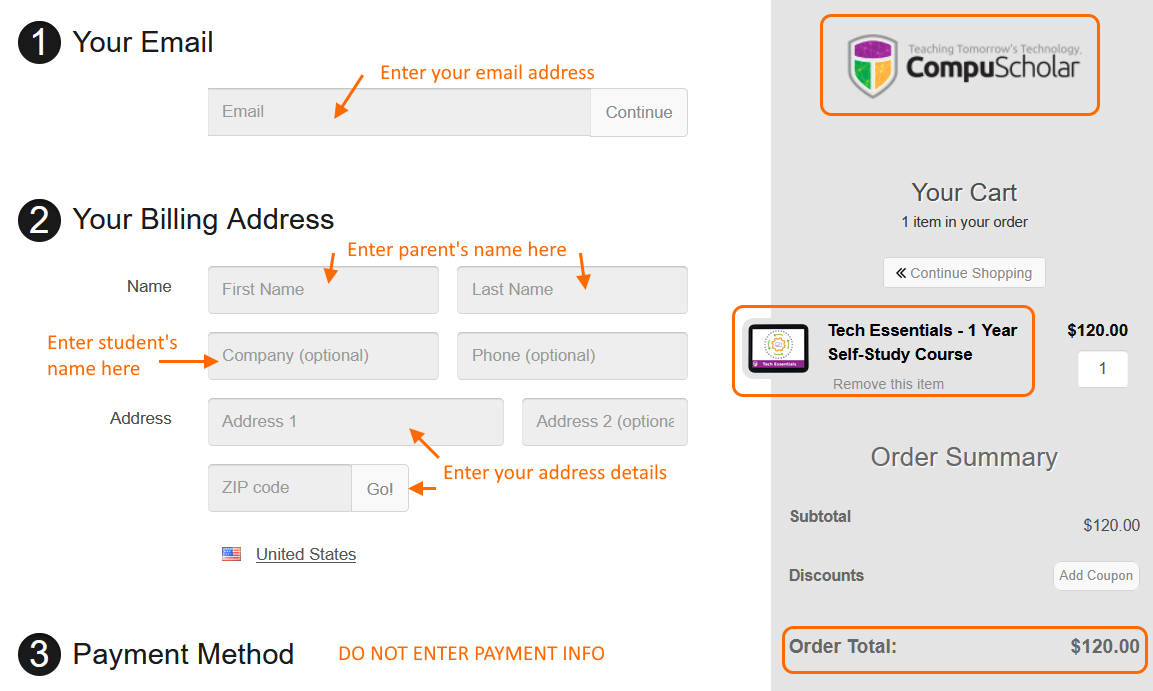
- Take a screenshot of the above checkout page, being sure to capture all relevant information. A screenshot makes an electronic copy of the current screen or window on your system's clipboard, and you can then paste that image into a word processing document or image editor and save the file as your invoice. The invoice must be in JPG, PNG, or PDF formats! If you need help taking a screenshot, please see these external articles:
- https://www.wikihow.com/Take-a-Screenshot-in-Microsoft-Windows (Windows - PrintScreen to capture the entire screen or Alt+PrintScreen to capture the current window)
- https://support.apple.com/en-us/102646 (macOS – Shift+Command+4 or similar hotkeys)
- Go to the ClassWallet website and log in with your personal ClassWallet account. Complete your vendor payment through your ClassWallet account, uploading your saved invoice file when prompted. For more guidance, please see the ClassWallet - How to Pay a Vendor page.
- ClassWallet will review and approve your purchase. The ClassWallet approval process may take time and is not dependent on CompuScholar. When approved, CompuScholar will be notified about your purchase.
- CompuScholar will then send you emails with your course registration codes and other purchase details. You are all set!